 How-to
Is an Ergonomic Desk Setup Worth It for Remote Work?
Last Updated: November 24, 2026
Quick Summary
An ergonomic desk setup is worth it for remote work because the posture habits formed at a kitchen table or couch add up to neck, shoulder and back discomfort over time. Small, deliberate fixes like matching chair height, raising the screen to eye level and bringing the keyboard close often make a noticeable difference without a large budget.
- Start with chair height so your feet rest flat and your elbows bend at about a right angle.
- Raise the top of the screen to eye level so your gaze lands on the upper third.
- A separate keyboard and mouse fixes the most common laptop problem of a low screen and high keys.
- Check your setup against the pass-or-fail checklist and fix failed items first.
- If pain persists after adjusting your setup, a professional assessment can identify the cause.
Table of Contents
- Why an Ergonomic Desk Setup Matters for Remote Work
- Chair and Desk Height: Getting the Foundation Right
- Monitor Height for Desk Ergonomics
- Keyboard, Mouse, and Laptop Positioning
- Ergonomic Workstation Setup Checklist
- DIY Ergonomic Desk Setup for Remote Workers on a Budget
- Visualizing Your Ergonomic Desk Setup Layout
- Your Next Step: Booking a Discovery Call About Back Pain
- Frequently Asked Questions
Working from home can mean hours at a kitchen table or a couch, and that posture often shows up later as neck, shoulder or lower-back discomfort. A desk setup that fits your body is one of the simplest changes you can make. Research from pilot study comparing ergonomic risk at a home-office workstation with an optimized workplace suggests the difference between a dining-table setup and a properly arranged workstation can be measurable. Posture habits matter to people who sit for long stretches, so this guide walks through what a practical ergonomic desk setup looks like and when it is worth the effort.
Why an Ergonomic Desk Setup Matters for Remote Work
A remote workstation rarely starts out ergonomic. Most people end up at whatever surface is available, with a laptop screen that sits too low and a chair that was never meant for eight hours of typing.
Over time, small mismatches add up:
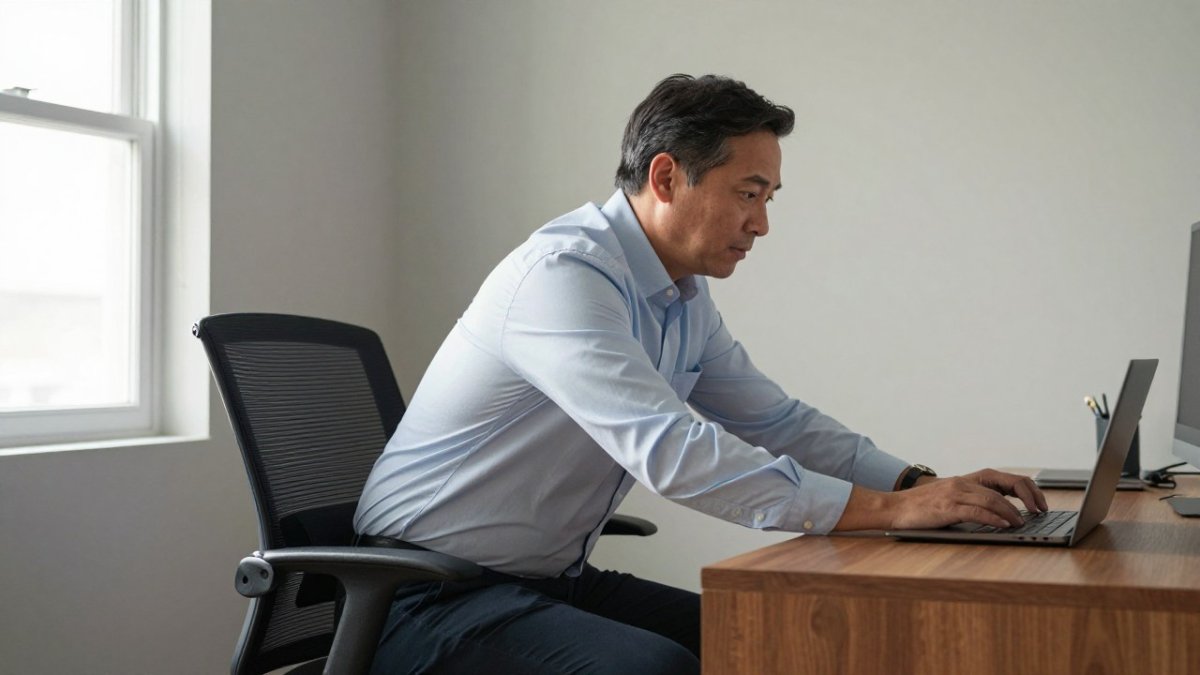
- The head tilts forward to read the screen
- The shoulders rise to reach the keyboard
- The lower back rounds when the chair offers no support
- The wrists bend while typing and mousing
A 2026 remote-work well-being survey from CoworkingCafe reported that among remote workers who wanted changes to their setup, better chairs and more ergonomic setups were common requests. That suggests many people notice the problem but are unsure where to begin.
The good news is that a setup does not need to be expensive to improve. Small, deliberate adjustments often make the biggest difference.
Chair and Desk Height: Getting the Foundation Right
Start with your chair and desk, because everything else depends on them. The goal is a relaxed, upright posture that you can hold without strain.
Set your chair so that:
- Your feet rest flat on the floor, or on a footrest if they do not reach
- Your thighs sit level or slightly angled down
- Your elbows bend at roughly a right angle when your hands are on the keyboard
- Your lower back has support, such as a cushion or a rolled towel
If your desk is too high, raise the chair and use a footrest. If it is too low, consider a desk riser or a lower-profile chair. Keep in mind that the right height depends on your body, so adjust in small steps and notice how your shoulders and lower back respond.
Monitor Height for Desk Ergonomics
The top of your screen should sit at or just below eye level. When you look straight ahead, your eyes should land near the upper third of the display.
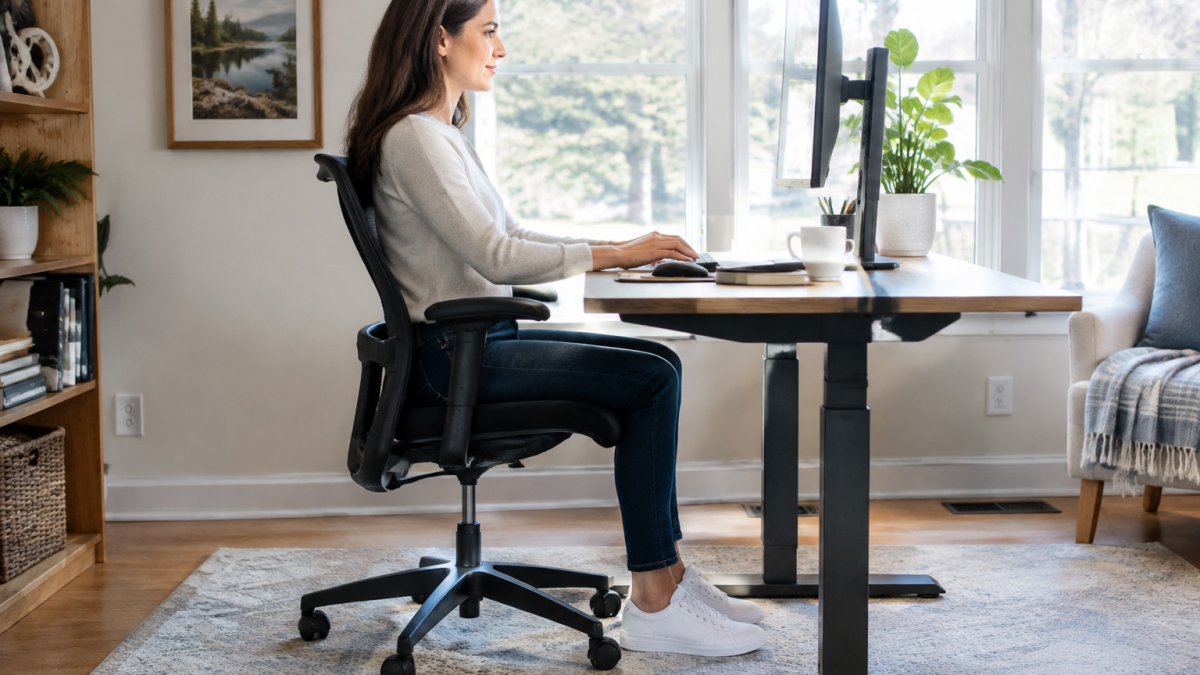
A simple way to check:
- Sit in your normal working posture
- Look straight ahead without tilting your head
- Note where your eyes land on the screen
- Raise or lower the monitor until your gaze hits the upper third
Screen distance matters too. Most people find an arm's length away comfortable. If you use a laptop, a stand plus an external keyboard lets you raise the screen without hunching over the keys. Laptop stands and external keyboards are often the most affordable way to fix a low screen.
Keyboard, Mouse, and Laptop Positioning
Your keyboard and mouse should sit close enough that your elbows stay near your sides. Reaching forward strains the shoulders and wrists.
Aim for these habits:
- Keep the keyboard directly in front of you
- Place the mouse beside the keyboard, at the same height
- Keep wrists straight and relaxed, not bent up or down
- Rest forearms lightly on the desk or armrests
- Keep shoulders relaxed, not raised
If you rely on a laptop, pairing it with an external keyboard and mouse solves most positioning problems at once.
Ergonomic Workstation Setup Checklist
This checklist gives you simple, repeatable checks so you can evaluate your own setup. Work through each item, note the result, and adjust only what fails.
Chair height and foot support
Sit in your normal working posture. For an expert check of your setup, see a professional workplace posture assessment.
- Pass: Thighs level or slightly angled down, feet flat on the floor or a footrest.
- Fail: Knees above hips, feet unsupported, or pressure behind the knees from the chair edge.
Elbow angle and keyboard reach
Rest your hands on the keyboard in your normal typing position. Your elbows should bend at roughly 90 to 110 degrees, and your upper arms should hang close to your sides.
- Pass: Elbows near a right angle, forearms roughly parallel to the floor, shoulders relaxed.
- Fail: Shoulders shrugged, elbows winged out, or wrists bent up or down while typing.
Monitor height and distance
Close your eyes, sit back in your chair, then open your eyes and look straight ahead without tilting your head. Your gaze should land on the upper third of the screen.
For distance, extend your arm toward the screen. Your fingertips should just touch the display. If you can easily touch it with a bent elbow, the screen is too close.
- Pass: Eyes land on the upper third, screen about an arm's length away.
- Fail: Head tilts forward or back to read, or you lean in to see text.
Wrist and mouse position
Place your hands on the keyboard and mouse as you normally would.
- Pass: Wrists neutral, mouse beside the keyboard at the same height, forearms supported.
- Fail: Wrists extended, mouse far from the keyboard, or forearms resting on a hard edge.
Lighting and glare
Look at your screen from your normal seated position. You should see the content clearly without reflections of a window, lamp, or overhead light.
- Pass: No visible glare, screen brightness comfortable for the room.
- Fail: Reflections on the screen, squinting, or leaning to avoid glare.
Movement and position changes
Set a timer for 30 minutes during a work session. When it goes off, notice whether you have changed position at all.
- Pass: You change position at least every 30 minutes, even briefly.
- Fail: You stay in one posture for hours without moving.
How to interpret your results
Count the number of failed checks. If you fail one or two, fix those first, because small changes often produce noticeable relief.
DIY Ergonomic Desk Setup for Remote Workers on a Budget
A better setup does not require a dedicated office or a new furniture budget. What works depends on your space, your body, and how much time you spend at the desk.
If you work from a kitchen table or shared surface
The main problem with a dining table is that it is usually too high for comfortable typing.
Watch out: A dining chair with a curved back can push your shoulders forward.
If you work from a couch or bed
Laptop use on a couch or bed almost always puts the screen below eye level and rounds the lower back.
If you have a small dedicated desk
A compact desk works well if you keep the keyboard and mouse close and the monitor at eye level.
If you are taller or shorter than average
Standard desk heights are designed for a middle range of body sizes. If you are taller, your desk may be too low, causing you to round your back or raise your knees.
If you have limited mobility or chronic pain
A setup that requires frequent position changes may not fit your needs. For movements that complement these desk changes, see core exercises for desk workers.
If you are pregnant
As your body changes, your setup may need to change with it.
Low-cost upgrades in order of impact
- A separate keyboard and mouse, which fixes the biggest laptop problem: a low screen and a high keyboard.
- A laptop stand or a stack of books to raise the screen.
- A footrest, which can be as simple as a box or a stack of books.
- A lumbar cushion or a rolled towel for lower-back support.
- A monitor arm or riser if the screen still sits too low after other adjustments.
An expensive chair will not fix a screen that sits too low, and a perfect screen height will not fix a chair that leaves your back unsupported.
Visualizing Your Ergonomic Desk Setup Layout
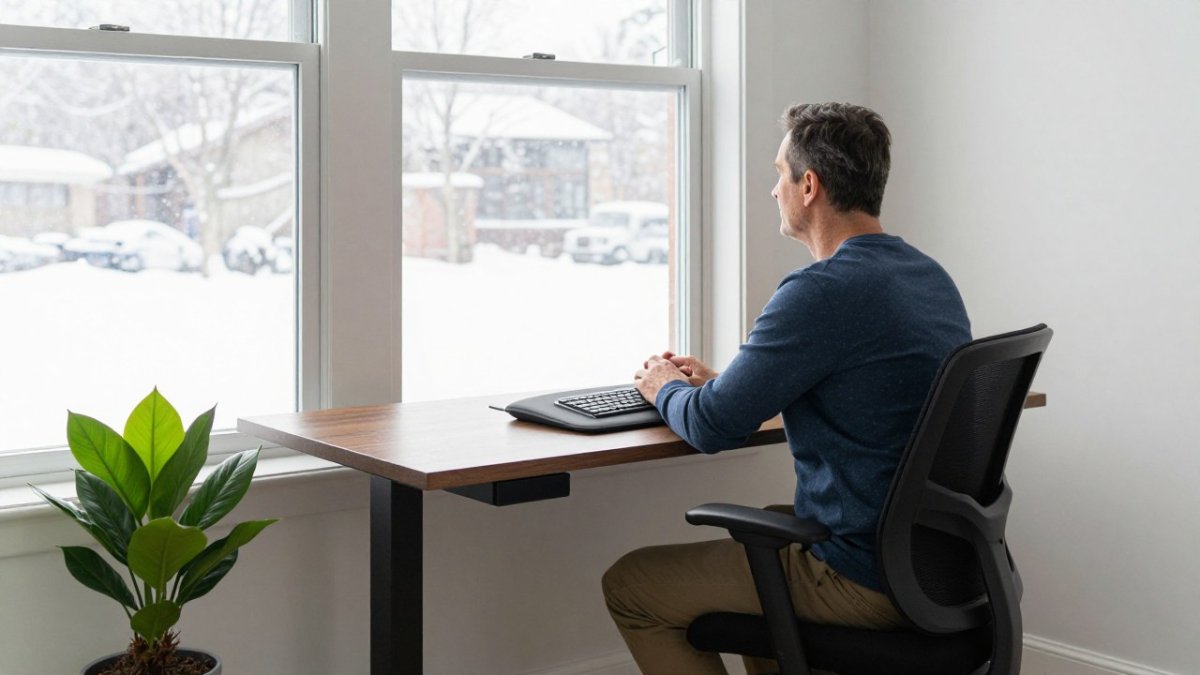
Picture a workstation where the chair, screen, keyboard and mouse form a simple cluster. The chair sits close to the desk, the screen sits directly ahead at eye level, and the keyboard rests just below the elbows. Light comes from the side rather than behind the screen, which reduces glare.
A layout like this works in a spare bedroom, a corner of the living room or a small apartment. The principle stays the same regardless of the room: keep the body supported and the screen where the eyes naturally land.
Your Next Step: Booking a Discovery Call About Back Pain
If you have tried adjusting your setup and still have persistent neck, back or sciatic pain, a professional assessment can help identify what is driving it. Desk changes help many people, but ongoing pain deserves a closer look. You can check which modifications actually improve spinal alignment in which desk changes actually fix spinal alignment. Spinal Haven offers one-on-one physical therapy with movement-based assessment, and sessions are available in person or virtually. Book a discovery call to talk through your symptoms and see whether we can help. For more on proven strategies for office back pain, read ergonomic strategies for office back pain that work.
Frequently Asked Questions
What is the best desk setup for working from home?
The best home desk setup keeps your body in a neutral position. Your chair should let your feet rest flat on the floor with knees at roughly hip height, your monitor top should sit near eye level about an arm's length away, and your keyboard should let your elbows stay close to your sides with wrists straight. A stable chair with lumbar support and a footrest if your feet do not reach the floor are useful additions. Adjust these settings gradually and notice how your back, neck and shoulders feel over a full workday. If pain persists, a consultation with a qualified professional can help identify the cause.
How should I position my monitor, keyboard, and chair?
Start with the chair so your hips sit slightly higher than or level with your knees and your lower back is supported. Place the monitor directly in front of you so the top of the screen is at or just below eye level, roughly an arm's length away. Position the keyboard and mouse close enough that your elbows remain relaxed at about a right angle and your shoulders stay down. Use a separate external keyboard and mouse with a laptop stand if you use a laptop. Recheck these points after any change to your workspace, since small shifts in height can alter your posture.
How can I make my home workstation more ergonomic without buying new furniture?
You can improve most home workstations with items you already own. Stack books or a sturdy box under a laptop to raise the screen, place a folded towel behind your lower back for support, and use a low stool or a stack of books under your feet if your chair is too high. Move frequently used items within easy reach so you do not twist or stretch. Adjust your chair height and screen position before buying anything. Changing your habits, such as taking regular movement breaks, also helps reduce strain from prolonged sitting.
How often should I take breaks from sitting at my desk?
Short, frequent movement breaks are generally easier to maintain than occasional long breaks. Many people find it helpful to stand, walk briefly or change position every 30 to 60 minutes. Simple movements such as standing up, rolling your shoulders, or stretching your neck and back can reduce the feeling of stiffness that builds during long periods of sitting. If you have ongoing back pain or sciatica, a physical therapist can recommend specific movements and self-management strategies suited to your situation.